.png)
5 Hacks for Making an eBook with Microsoft Word
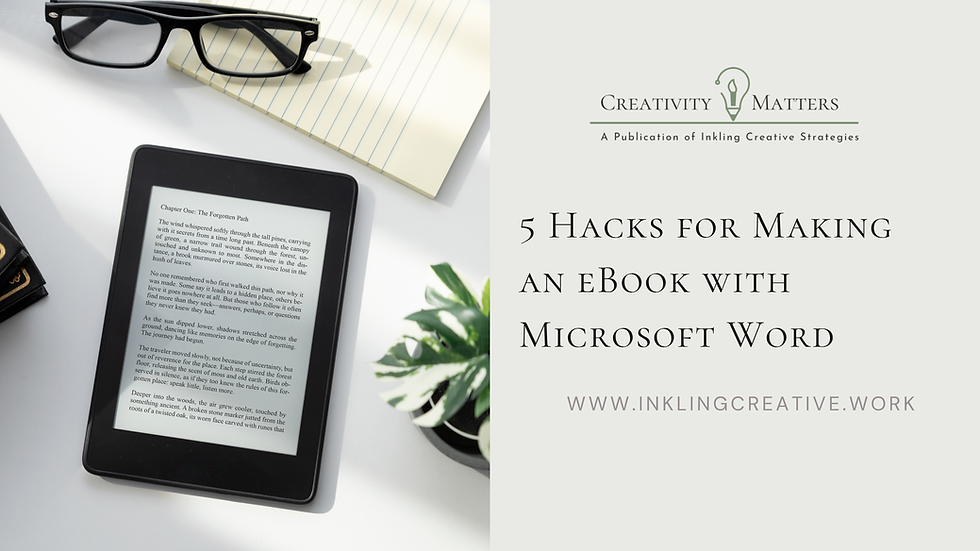
If you’ve spent any time in publishing circles, you’ve probably heard people dismiss Microsoft Word as a formatting tool. And to be fair, when it comes to typesetting print books, they aren’t entirely wrong.
For physical books, especially those with mirrored margins, running headers, precise trim sizes, and print-ready requirements, Word has limitations. Dedicated layout software often does that work better.
But ebooks are a different animal. Because they’re reflowable, they don’t behave like print books. Readers can enlarge the font, adjust spacing, and read on devices of wildly different sizes, from a phone to a Kindle to a tablet. The text shifts dynamically to fit the screen.
That means ebook formatting is less about designing fixed pages and more about creating a clean, well-structured document that can adapt gracefully.
And that’s where Microsoft Word can be surprisingly effective.
Used well, Word can do much of what an author needs to prepare an ebook for Kindle or EPUB conversion. In fact, all the tips I’m about to give have less to do with fancy formatting and more to do with avoiding common mistakes.
So, if you’re tempted to dismiss your ability to do this well because of some perceived lack of design skills, don’t do that. Here are five hacks that can make a real difference if you want to create an ebook with Microsoft Word.
Use Styles Instead of Formatting by Hand
This may be the most important hack in the bunch. A lot of writers format chapter titles manually by changing font sizes, centering text, and adding extra spaces until it looks right.
That can work visually inside Word, but it often causes problems when the manuscript is converted into an ebook. Using Word Styles creates structure instead.
Think of your ebook as one big blog post. Everything has to run vertically down the page, stacked, to render appropriately in different ereaders. Headings and text styles are what help this happen.
When you assign Heading 1 to chapter titles and use consistent styles for subheads and body text, you’re building a document ebook converters can understand. That structure helps preserve formatting and also makes navigation features, such as a linked table of contents, much easier to create.
It also saves you an enormous amount of time when you need to make global changes later. Need to make your captions italicized instead of bolded? Want your chapter headings centered instead of justified? Just edit the Word style and your changes will be magically applied throughout!
Let Word Build Your Table of Contents
If you’ve used styles correctly, Word can generate a table of contents automatically. Yes, you heard me. No jumping back and forth between different pages and accidentally linking the wrong chapter. Just use the right headings, and it’s one and done.
But why does a table of contents matter for an ebook, you might ask? It’s because ebook readers expect navigation. They want to tap a chapter and jump there, not flip through hundreds of digital pages looking for what they need.
More importantly, clean navigation signals professionalism. I’ve seen authors skip this step because it feels optional. It isn’t. A proper table of contents makes your ebook feel like a finished product rather than just a converted manuscript.
Use Page Breaks, Not Repeated Enters
This sounds simple, but it causes an astonishing number of formatting problems. Trust me. This is one I just recently learned, and it’s a super basic thing that can create tons of issues if you don’t know about it.
If you want a new chapter to start on a fresh page, don’t hit Enter over and over until the cursor lands where you want it.
Use a page break. Every time.
Repeated returns can create ugly spacing problems in conversion, especially in reflowable ebooks where text shifts depending on screen size. The same principle applies to tabs, multiple spaces, and other manual workarounds.
If you’re forcing Word to behave visually instead of using its actual formatting tools, you’re usually setting yourself up for trouble later.
Clean files convert better, and page breaks create clean files.
Insert Images the Right Way
OK. You’re probably getting PTSD from previous Word snafus already, but please take a breather and settle down. More than likely, you’ve had problems because you’ve been trying to make things look fancy and perfectly aligned. Maybe you’ve even tried to put photos side by side.
Those are good instincts if you’re designing a print book, but with ebooks, images can behave unpredictably as the PNG files you’re trying to perfectly position in Word. But it doesn’t have to be that way.
If your book includes illustrations, photos, or graphics, set images to “In Line with Text.” That keeps them anchored where they belong.
Floating image settings may look fine inside Word, but can cause strange shifts in ebook files.
I also recommend being mindful of image size. Oversized files can create bloated ebooks, while inconsistent image dimensions can make the reading experience feel uneven.
Also, always test how images appear on smaller screens. Something that looks elegant on a desktop monitor may feel cramped or awkward on a Kindle.
Test Before Publishing
This may be the most overlooked hack of all.
Never assume your ebook is ready because it looks good in Word.
Before you ship it, test it. If you are publishing on Kindle Direct, you can do this within the platform, but if you want a quick way to see what the book will look like on different devices, Kindle Previewer is free to download.
You’ll get to see what the book looks like on different devices, such as a Kindle ereader, tablet, or smartphone, as well as with different fonts and sizing.
Check how chapter links function. Look at paragraph spacing. Make sure images appear where they should. Watch for odd breaks or formatting glitches.
This is essentially proofreading for layout, and it matters more than many authors realize. Readers will forgive the occasional typo faster than they forgive a book that feels clumsy to navigate.
Testing is often what separates an amateur-looking ebook from a polished one.
Microsoft Word Is Better at Ebooks Than People Think
There’s a persistent myth that serious ebook creation requires expensive tools. It doesn’t.
Really, it’s just about understanding how ebooks work. Once you understand that reflowable books rely on structure more than fixed design, Word starts making a lot more sense as an ebook tool.
Is it perfect? Definitely not. But it’s far more capable than people often give it credit for, and for many authors, it’s the tool they already have.
However, if you’d rather spend your time writing than wrestling with Word styles and conversion quirks, that’s where I come in.
At Inkling Creative Strategies, I offer book layout and typesetting services, including ebooks. I help authors turn Word manuscripts into polished digital books ready for publication.
If you need help formatting for Kindle or EPUB, cleaning up an interior, or preparing your manuscript for digital release, I’d be glad to help.
Click here to schedule a free consultation and see if I’m a fit!


Comments